
How to change "Your mic is muted by system settings"
If you get an error in Google Meet saying "Your microphone is muted by your system settings" then you can do these few steps to fix that and un-mute your mic. (Note: This will only work for windows devices, such as your teacher laptop)
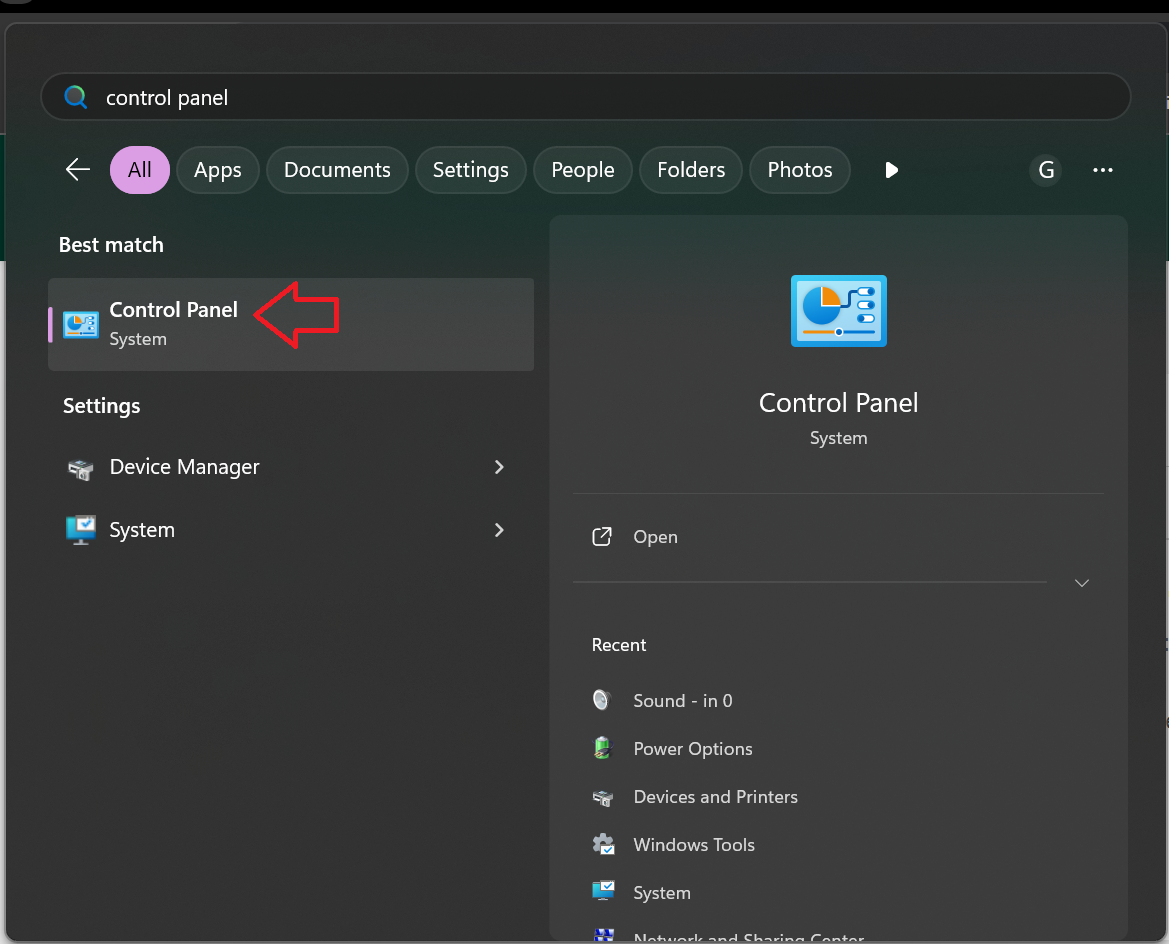
- Click the window pane icon on the bottom left of your screen and start typing "Control Panel" and then click on the search result for "Control Panel"
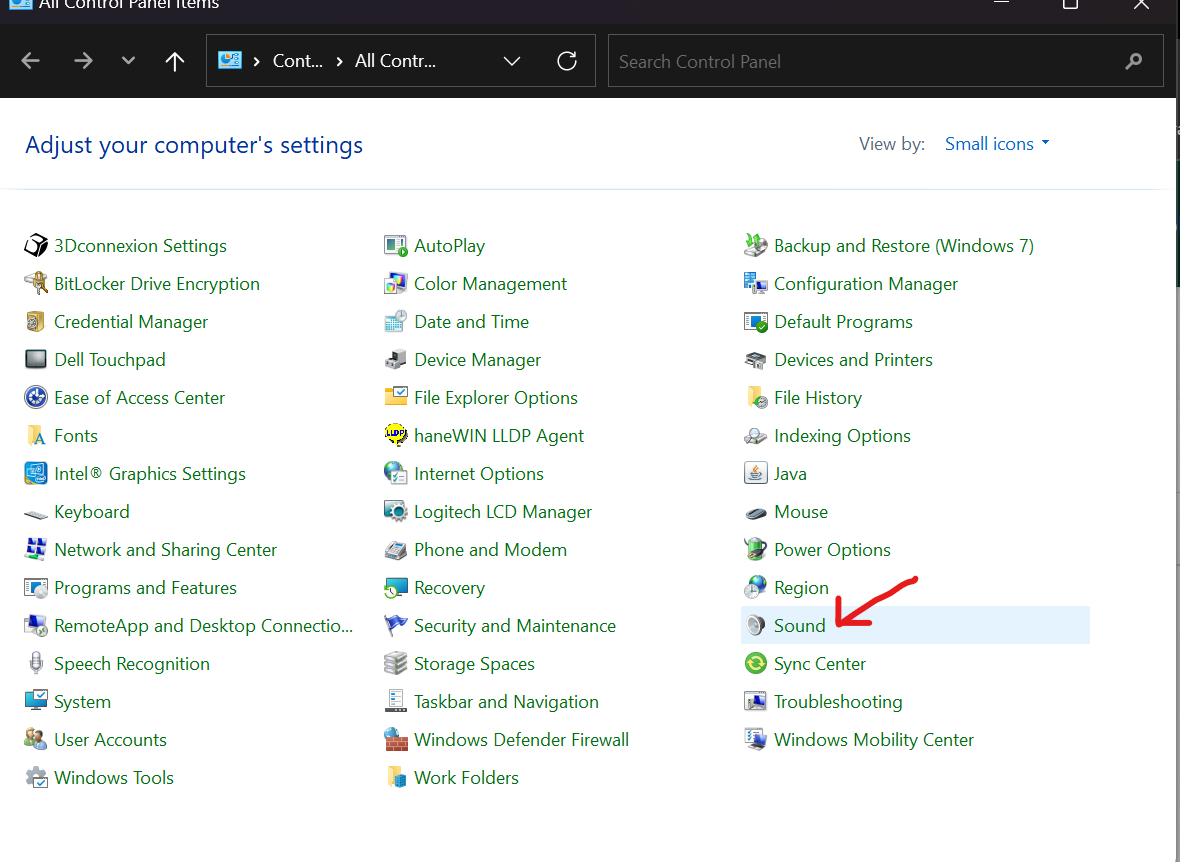
2. Click the "Sound" option towards the right side of the newly opened window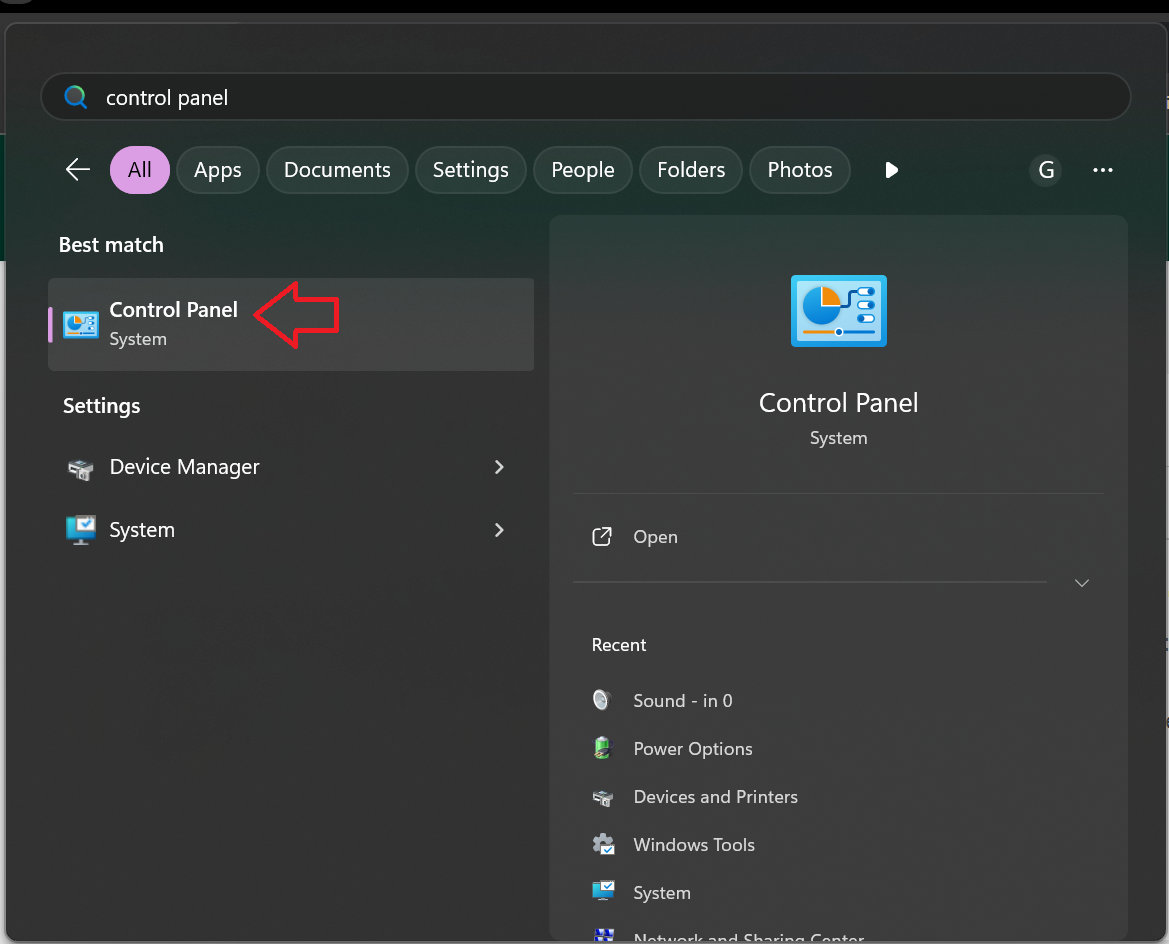
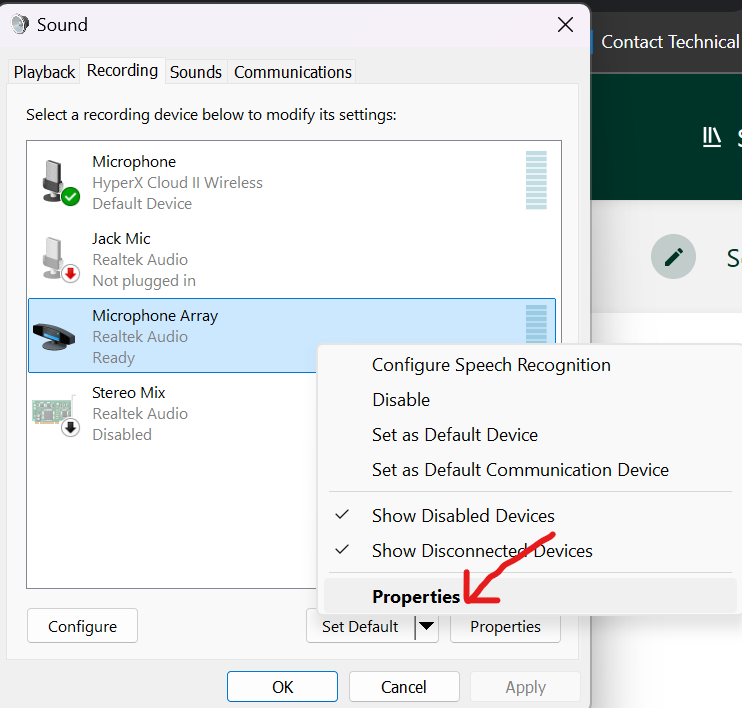
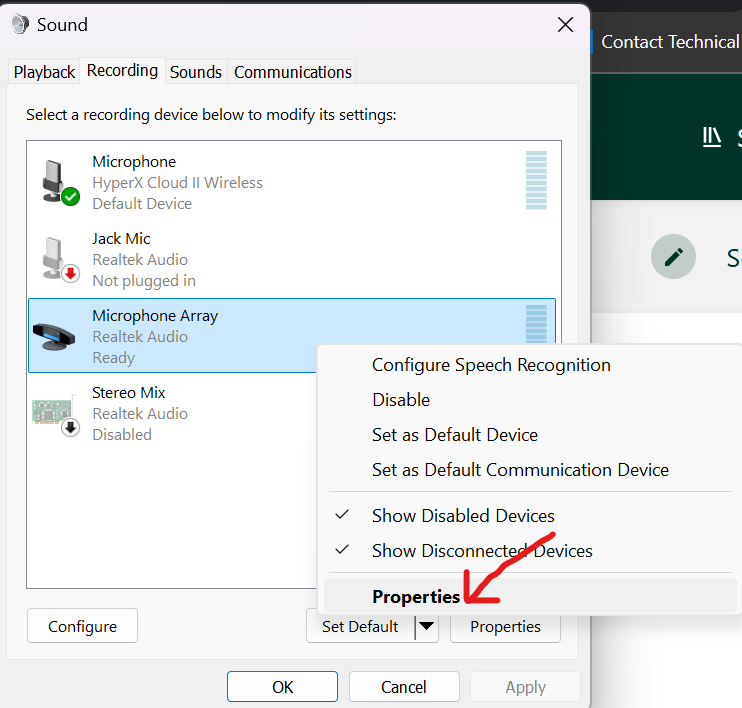
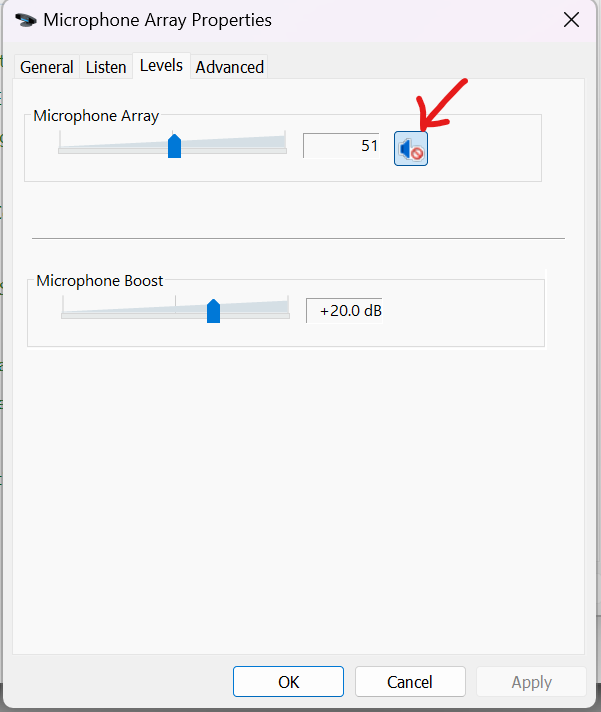
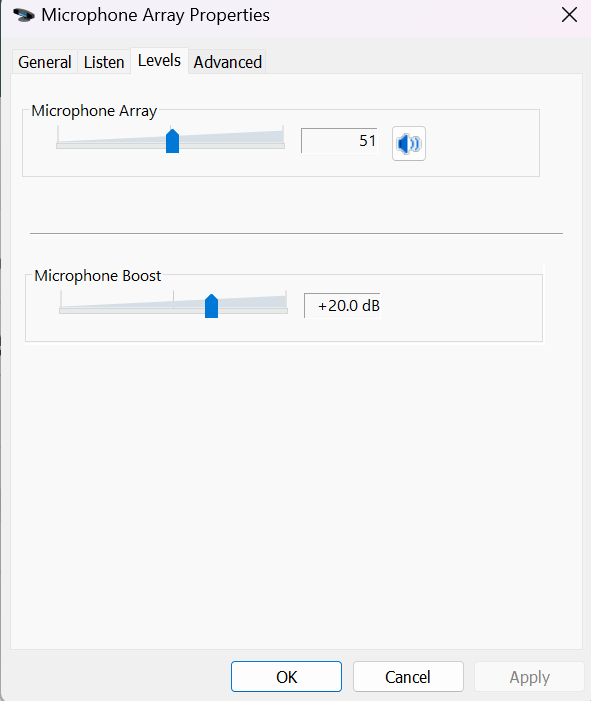
3. Click the "Recording" tab in the new window it opened up, and then right click on "Microphone Array" and then click "Properties"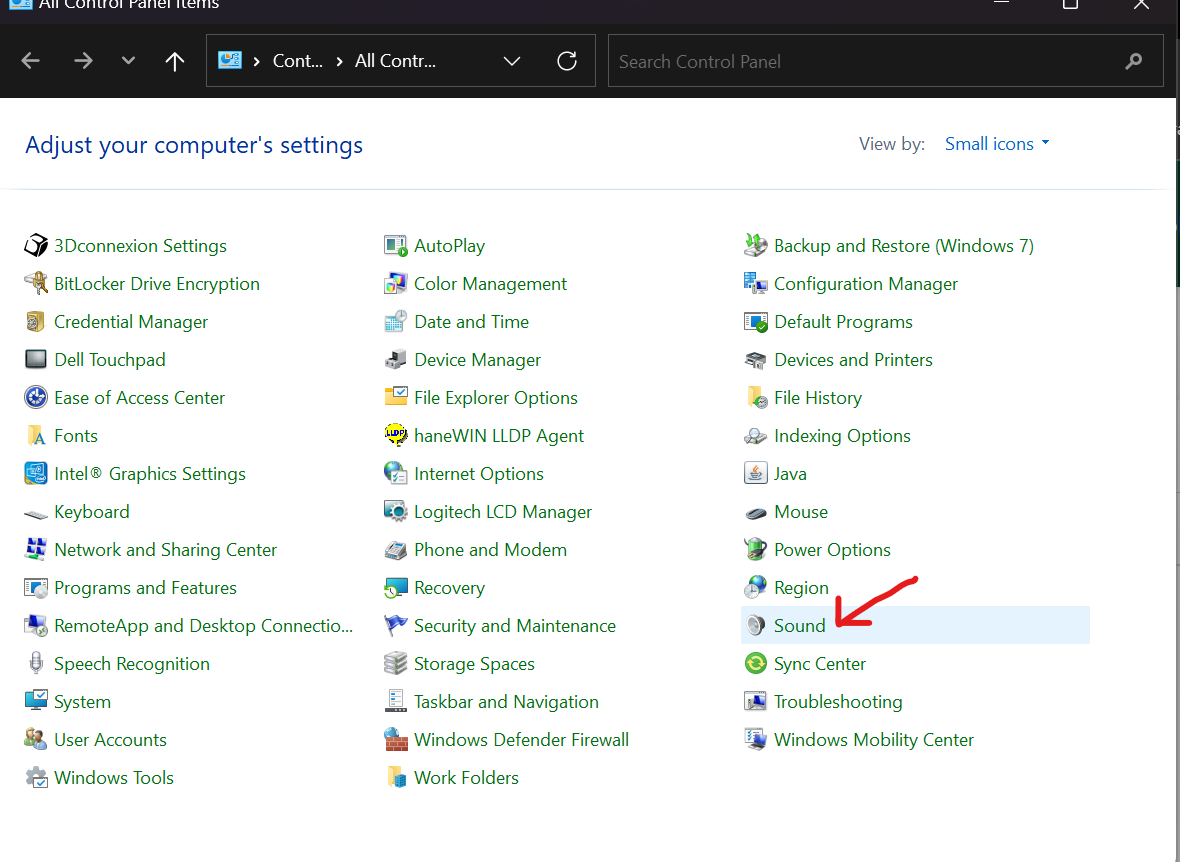
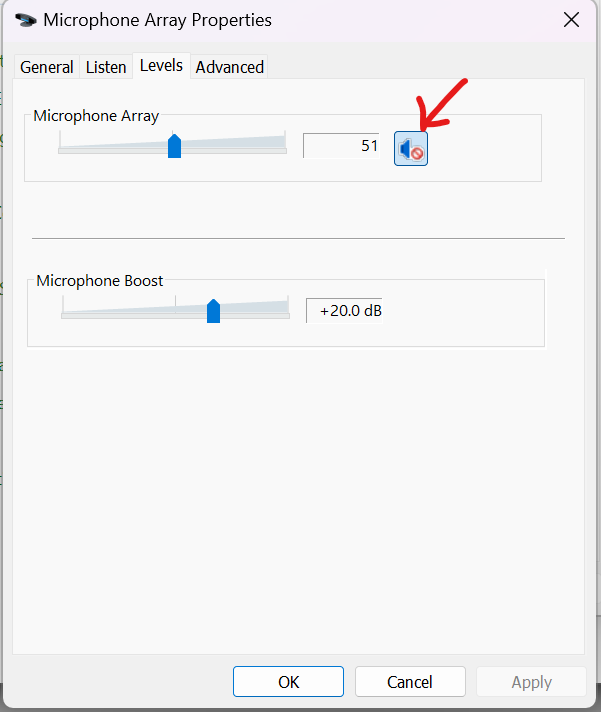
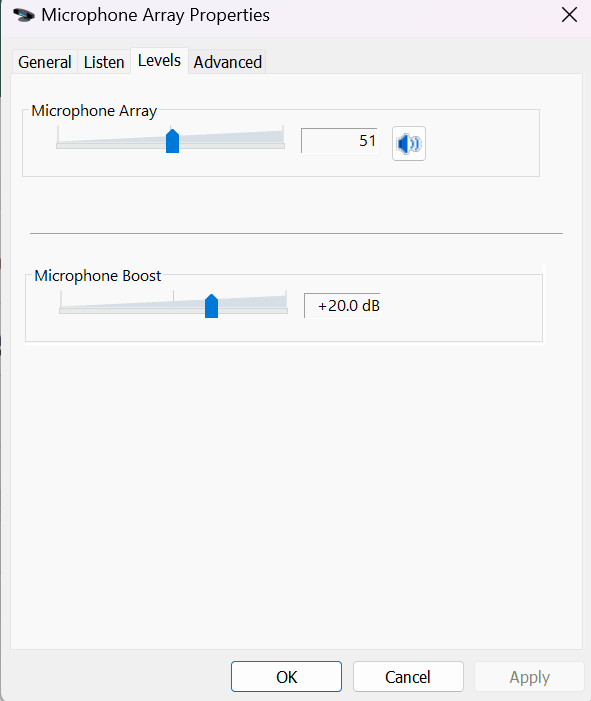
4. Click the third tab that says "Levels" and then click on the speaker icon to un-mute the microphone. Once you do this, click "Apply" on the bottom of the window, then click "Ok". You microphone should now be un-muted.
No comments to display
No comments to display